How to Submit a Quarterly Update for MTD (Step by Step)
A step-by-step walkthrough of submitting a Making Tax Digital quarterly update to HMRC: what figures to enter, how cumulative reporting works, and how to check everything before you file.
The short answer
To submit an MTD quarterly update: keep your income and expenses in MTD-compatible software, select the open quarter for each business, enter your year-to-date (cumulative) income and expense totals, review them, and send them to HMRC. You'll get a confirmation receipt. Each update is an estimate-in-progress, not a final figure — you finalise everything later at the final declaration.
Filing a quarterly update sounds daunting the first time. In practice it's a short, repeatable routine. Here's exactly how it works, step by step.
Before you start: what you need
- MTD-compatible software that HMRC recognises, connected to HMRC.
- Your income and expenses recorded digitally up to the end of the quarter.
- To know which business you're filing for (each income source is separate).
Step 1 — Connect to HMRC (one-time)
Your software needs authority to file on your behalf. You sign in through HMRC's own login page — the software never sees your Government Gateway password — and grant permission. Accountants connect once through their Agent Services Account, which then covers all authorised clients.
Step 2 — Pick the open quarter
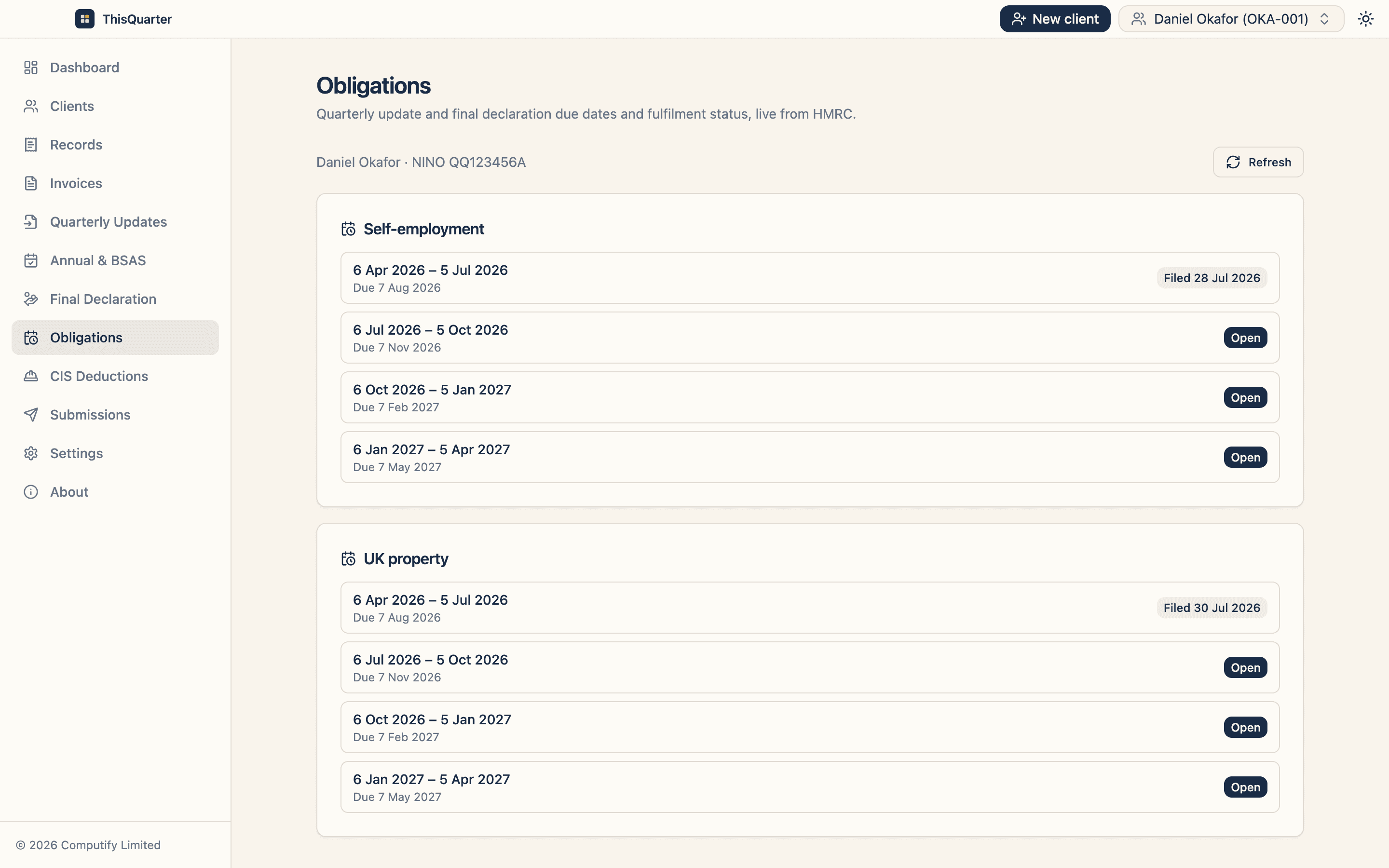
Good software pulls your obligations from HMRC and shows which quarters are open and which are already fulfilled. Select the open period for the business you're filing for. Filing the wrong period is the most common avoidable mistake, so let the software show you what HMRC is actually expecting.
Step 3 — Enter your figures (cumulative)
This is the part people misunderstand, so read carefully:
Quarterly updates are cumulative. You enter the year-to-date total, not just the latest quarter. Your Q2 figure is everything from 6 April up to the end of Q2; Q3 adds the next three months on top; and so on.
For self-employment you'll enter:
- Income — turnover, other income, and any tax already taken off (e.g. CIS).
- Expenses — either a single consolidated figure (allowed if your turnover is under the VAT threshold) or itemised categories (cost of goods, subcontractor payments, travel, premises, and so on).
For property you'll enter your rental income and property expenses.
Tip: distinguish "not entered" from "zero". HMRC treats a blank field and an explicit £0.00 differently, so only type zero where you genuinely mean it.
Step 4 — Review everything
Before you file, check every figure against your records. A good workflow shows you each field, its value, and a rough income-minus-expenses total so anything obviously wrong jumps out. Because you're the one declaring the numbers, this review step matters — treat it as a deliberate checkpoint, not a formality.
Step 5 — Submit to HMRC
Send the update. Your software attaches the technical bits HMRC requires (like fraud-prevention headers) automatically. On success, HMRC returns a confirmation receipt and marks that quarter fulfilled. Keep the receipt — it's your proof of submission.
Step 6 — Repeat next quarter
That's the whole loop. Next quarter you pick the new open period, enter the new cumulative totals, review, and file. Once you've done it once, each update usually takes only a few minutes.
Common questions in practice
Made a mistake? Because updates are cumulative, you can correct an earlier error simply by entering the right year-to-date total next quarter — or by amending the period directly. Nothing is set in stone until the final declaration.
Multiple businesses? File one update per income source. Two self-employments plus a rental means three sets of quarterly updates, each with its own obligations.
Nothing happened this quarter? You still submit, so HMRC's record shows the period as fulfilled and you avoid a late-submission point.
How ThisQuarter helps. ThisQuarter loads your live HMRC obligations, shows the previous quarter's figure beside each field so cumulative entry is obvious, gives you a full review screen with an "I've checked these figures" confirmation, and stores every submission receipt as proof. See how it works.
The bottom line
A quarterly update is: pick the open period → enter cumulative income and expenses → review → submit → keep the receipt. Get into the rhythm and it's one of the easiest parts of running your business.
Frequently asked questions
What figures go in a quarterly update?
Your income and expenses for each business, as year-to-date totals. For self-employment that's turnover, other income and any tax taken off, plus either a single consolidated expenses figure or itemised expense categories. For property it's your rental income and expenses. You don't add up your tax — HMRC does that.
Do quarterly updates have to be exact?
No. Quarterly updates are an estimate-in-progress. You correct and finalise everything at the final declaration after the tax year. Because updates are cumulative, a correction in a later quarter automatically carries forward.
What does 'cumulative' mean for quarterly updates?
Each quarterly update is a running year-to-date total, not just that quarter on its own. So your Q3 figure is your income and expenses from the start of the tax year up to the end of Q3 — you add the latest quarter on top of what you filed before.
Do I submit a separate update for each business?
Yes. If you have more than one self-employment, or self-employment plus property, each is its own income source with its own quarterly update and its own obligations.
What if I had no income in a quarter?
You still need to submit. Enter the figures as they stand (which may be zero), so HMRC's record shows the quarter as fulfilled.
Related reading
MTD Quarterly Update Calendar 2026/27: Every Deadline
The full Making Tax Digital for Income Tax filing calendar for 2026/27 — every quarterly update period and deadline, the final declaration date, and how the optional calendar-quarter election works.
Consolidated vs Itemised Expenses in Your MTD Quarterly Update
When you can report a single consolidated expenses figure in a Making Tax Digital quarterly update versus itemising every category, the VAT-threshold rule, and what 'disallowable' amounts mean.
Estimating Your Tax Bill Under MTD (So There Are No Surprises)
How to estimate your income tax and National Insurance through the year using your MTD quarterly figures, why quarterly updates don't calculate tax, and a simple set-aside rule to avoid a January shock.